The short version
- Clicks from ChatGPT, Perplexity, Gemini, Copilot and Claude can show up in GA4, usually as referrals, but GA4 doesn’t group them for you.
- A custom channel group with one regex rule gives you an “AI assistants” channel in every report.
- You’ll still undercount: many AI apps send no referrer, so some of that traffic lands in Direct. And Google’s AI Overviews can’t be separated from normal Google search.
People are starting to ask AI assistants for product recommendations, and some of those answers include links. The question every store owner should be asking is simple: is any of that traffic reaching me, and does it buy?
GA4 can answer part of that question. Not all of it, and it’s worth understanding why before you build anything.
Table of Contents
How AI traffic arrives in GA4
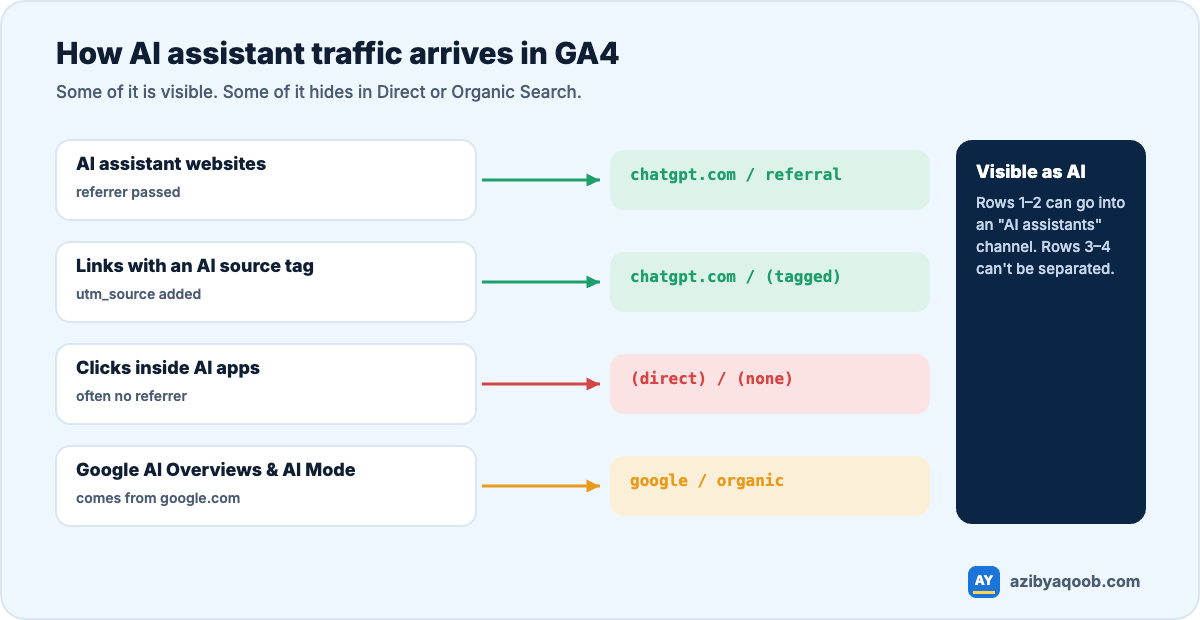
- From the website (browser): a click from chatgpt.com, perplexity.ai, gemini.google.com, copilot.microsoft.com or claude.ai usually passes a referrer. GA4 records it as a referral from that domain.
- With a UTM tag: some assistants add their own tag to outbound links. ChatGPT, for example, commonly adds
utm_source=chatgpt.com. Those visits show that source even when no referrer is passed. - From mobile and desktop apps: clicks inside an app often arrive with no referrer and no tag. GA4 has no way to know where they came from, so they land in Direct.
- From Google’s AI Overviews and AI Mode: these clicks come from google.com and are reported as normal organic search. You can’t separate them in GA4.
Step 1: See what’s already there
Before building anything, check whether you’re getting AI traffic at all.
- Go to Reports → Acquisition → Traffic acquisition.
- Change the main dimension to Session source.
- Search the table for
chatgpt,perplexity,gemini,copilotandclaude.
If you see a handful of sessions, it’s worth setting up a proper channel. If you see nothing, check again in a few months; it’s still early for most stores.
Step 2: Create an “AI assistants” channel
A custom channel group lets you report AI traffic as its own channel, alongside Organic Search, Paid Social and the rest, in standard reports.
- Go to Admin → Data display → Channel groups.
- Copy the default channel group so you keep all the normal channels.
- Add a new channel called AI assistants with the condition: Source matches regex:
^(.*\.)?(chatgpt\.com|chat\.openai\.com|openai\.com|perplexity\.ai|gemini\.google\.com|bard\.google\.com|copilot\.microsoft\.com|claude\.ai|you\.com|poe\.com|meta\.ai|deepseek\.com)$- Move the new channel above Referral in the list. GA4 checks channels top to bottom and stops at the first match, so if Referral comes first, it takes the credit.
- Save, then choose your new channel group in the Traffic acquisition report.
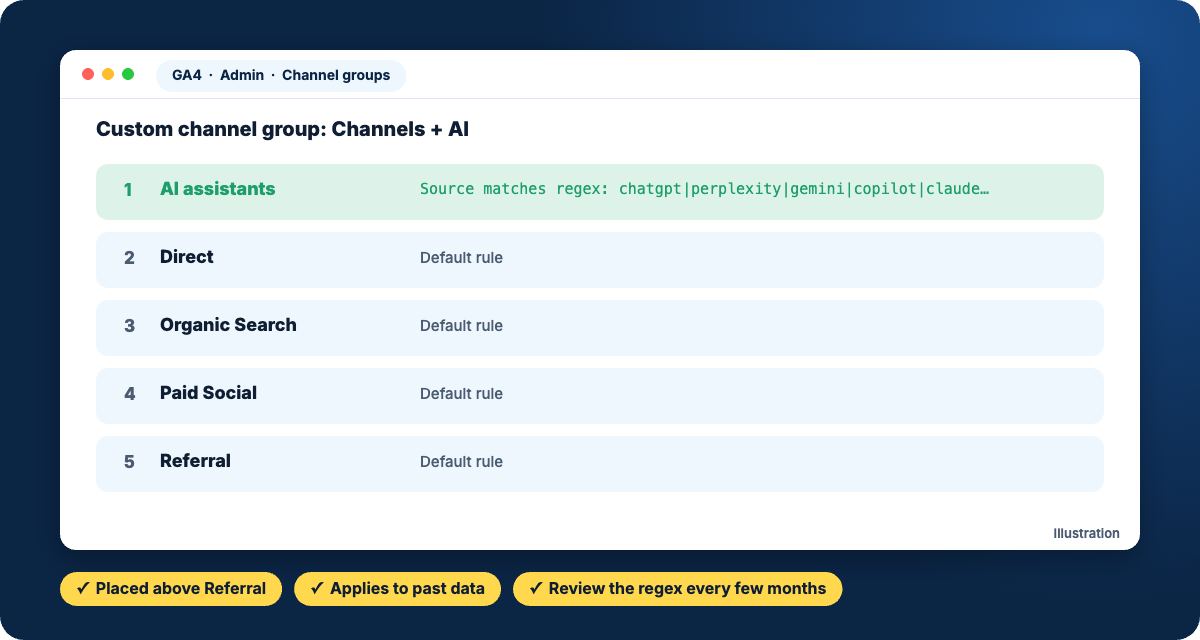
Channel groups apply to your data retroactively in reports, so you’ll see past AI visits in the new channel too.
My view: treat whatever this channel shows as a floor, not the real total. App clicks without a referrer and AI Overviews are invisible to it. The useful signals are the trend and the behaviour: do AI visitors land on deep product pages, and do they convert better or worse than search?
Step 3: Look at what AI visitors actually do
- Landing pages: which pages are AI assistants sending people to? Those are the pages AI tools consider useful answers. Keep them accurate and up to date.
- Engagement and conversions: compare the AI channel with Organic Search. Visitors who arrive from a specific recommendation often know what they want.
- Trend: check monthly. Small numbers move a lot, so don’t react to one week.
Keep the regex up to date
New assistants appear and domains change. Review the list every few months, and when you spot a new AI source in your referral report, add it to the regex.
If your Direct traffic is large, some AI visits are probably hiding there. My guide to why so much traffic shows as Direct in GA4 explains what else ends up in that bucket.
Want this set up for you? I set up GA4 channel groups and reporting so you can see which channels, including AI assistants, actually bring customers. See GA4 tracking setup or ask for a free tracking check.