Last Updated on by Azib Yaqoob
The short version
- Smart Bidding and Performance Max only learn from your primary conversion actions. If the wrong action is primary, or two are, the algorithm optimises on bad data.
- On Shopify, purchases must come from the Google & YouTube app or a custom pixel. Theme code never runs on checkout.
- “Google tag missing” is often a false alarm. “Inactive” or “No recent conversions” on your purchase action is not.
When Google Ads conversions look wrong on a Shopify store, people usually start fiddling with tags. Start somewhere else: the conversion actions list in Google Ads. More often than not, that page already tells you what’s wrong. You just have to know how to read it.
Here’s the order to work through it.
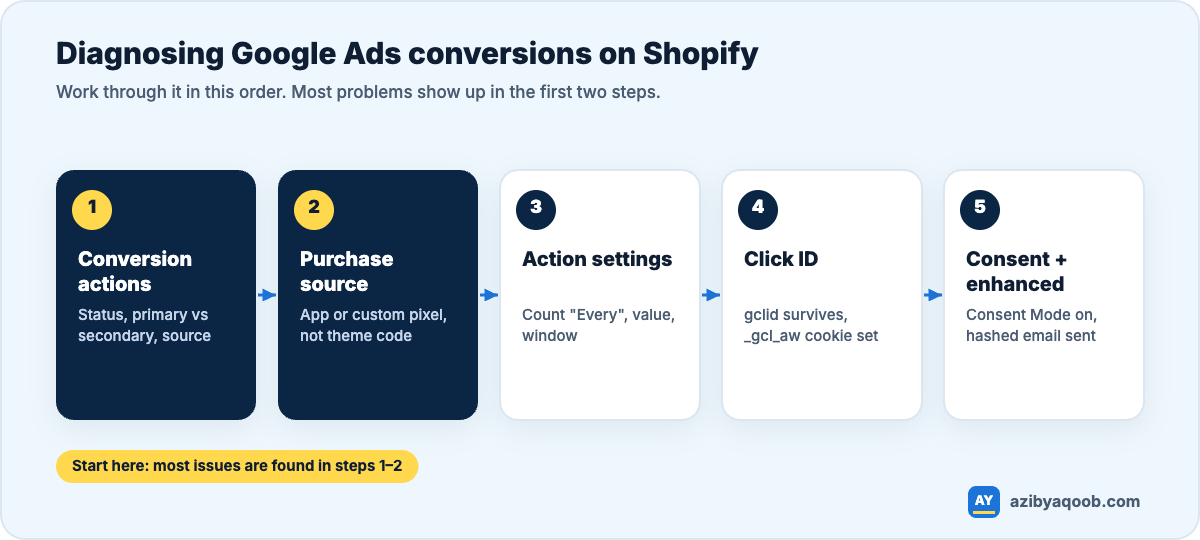
Table of Contents
Step 1: Read the conversion actions list properly
Go to Goals → Conversions → Summary and look at every action in the Purchases category, not just the one you think is active. Three columns matter most:
- Status. “Recording conversions” means Google is receiving the tag. “No recent conversions” means it was seen before but not lately. “Inactive” or “Unverified” means Google has never (or not for a long time) seen it fire.
- Action optimisation (primary or secondary). Only primary actions are used for bidding and appear in the main “Conversions” column.
- Source. Website (the Ads tag, including the Google & YouTube app), Google Analytics (imported from GA4), or something else.
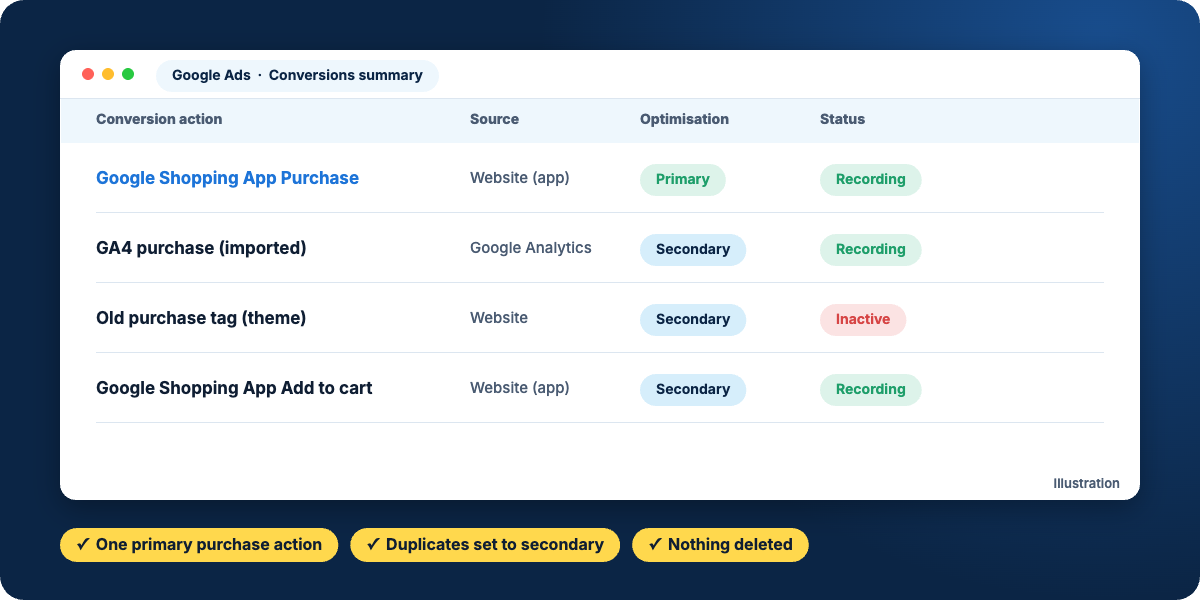
A very common problem here isn’t a broken tag at all. It’s two primary purchase actions: one from the Google & YouTube app and one imported from GA4. Google counts both, bidding thinks you’re getting twice the sales, and your cost per acquisition looks great while profit doesn’t.
My take: make the native Google Ads purchase action (from the Google & YouTube app) your one primary purchase. Keep the GA4 import as secondary for reference. GA4 imports arrive later and follow GA4’s attribution rules, which isn’t what you want bidding to learn from. Never delete the old actions until you’re sure; set them to secondary.
Step 2: Make sure the purchase is sent from the right place
Shopify’s checkout and order confirmation pages don’t run your theme. So a Google Ads tag in theme.liquid, or in GTM installed through the theme, never fires on a purchase. Since August 26, 2026, the old “Additional scripts” box doesn’t run on any plan either.
Purchases need to come from Shopify’s Web Pixels: the Google & YouTube app, or a custom pixel listening for checkout_completed. If GA4 purchases are missing too, the causes overlap. See Shopify GA4 not tracking purchases.
Step 3: Check the settings on the primary action
- Count: “Every” for purchases (each order matters). “One” is for leads.
- Value: use the transaction value, and agree what it includes. Product revenue after discounts, excluding shipping and tax, is a sensible default for bidding.
- Click-through window: long enough for your buying cycle. 30 days is a common default, but higher-priced products often need longer.
Step 4: Don’t panic about “Google tag missing”
Google Ads often shows this warning on Shopify stores using the app, because the app loads the tag in a way Google’s checker doesn’t always detect. If your primary purchase action says Recording conversions, you can usually ignore it.
If it doesn’t, load your store with Google Tag Assistant, confirm the Google tag with your AW- ID fires, then place a test order.
Step 5: Follow the click ID
Google matches a sale to an ad using the gclid added to your landing page URL. Lose it, and the sale can’t be attributed.
- Check auto-tagging is on in your account settings.
- Open your store with
?gclid=test123on the end. Click through to a product and check the parameter survived any redirects: non-www to www, country redirects from Shopify Markets, or a landing page app. - In DevTools, check that a
_gcl_awcookie is set after landing. No cookie usually means consent is blocking it or the tag didn’t load.
Step 6: Consent Mode and enhanced conversions
If you sell to the EU or UK, your banner must support Google Consent Mode. With it, Google can model conversions from visitors who decline cookies. Without it, those conversions simply vanish.
Then turn on enhanced conversions. They send a hashed email or phone number with the purchase, which helps Google match the sale when the click cookie is missing. On Shopify you can enable them in the Google & YouTube app; also check they’re active on the conversion action itself.
How to compare Google Ads with Shopify fairly
- Google Ads reports a conversion on the date of the click, not the order. The last few days always look low and fill in later.
- It only counts orders after an ad interaction, within your window.
- So compare it with Shopify orders that came from Google Ads traffic, over at least a week, not with all orders.
If those two numbers are within roughly 10–25% of each other, your tracking is probably healthy, and the difference is consent, cross-device journeys and attribution windows.
If the campaign gets no impressions at all
That’s usually not a tracking problem. Conversion tracking affects how well a campaign optimises, not whether it serves. Check Merchant Center product approvals, billing, policy issues and your bid strategy targets first. A very high Target ROAS on a new campaign with no data can choke it completely.
Need conversions you can bid on? I fix Google Ads, GA4 and Meta tracking on Shopify so every real sale is counted once, with the right value. See tracking audit or ask for a free tracking check.