Last Updated on by Azib Yaqoob
If your website’s main goal is getting enquiries, your contact form is your “purchase”. Yet on most WordPress sites I check, GA4 either doesn’t track form submissions at all, or counts them wrong: every time someone clicks the button, even when the form fails, or twice when the thank-you message reloads.
This guide shows two ways to track form submissions properly in GA4, which one to use, and how to check that it works.
Table of Contents
Why the built-in GA4 form tracking isn’t enough
GA4’s enhanced measurement has a “Form interactions” setting that sends form_start and form_submit events automatically. It sounds perfect, but in practice:
- Most WordPress form plugins (Contact Form 7, WPForms, Gravity Forms) submit without reloading the page, and GA4 often misses those submissions.
- It can fire when someone clicks submit even if the form shows an error, so failed attempts get counted as leads.
- It fires for every form on the page, including search boxes and newsletter sign-ups, so you can’t tell an enquiry from a search.
Use it as a rough signal at best. For leads you actually rely on, track the successful submission, as below.
Method 1: Thank-you page (simplest)
If your form plugin can redirect to a separate thank-you page after a successful submission, you can count visits to that page as leads.
- Create a page such as
/thank-you/and set your form to redirect there after a successful submission. - In GA4, go to Admin → Data display → Events → Create event. Create an event called
generate_leadwith the condition:event_nameequalspage_viewandpage_locationcontains/thank-you/. - Once the event appears, go to Admin → Data display → Events and click the star next to
generate_leadto mark it as a key event.
Watch out: anyone who bookmarks or refreshes the thank-you page gets counted again. Exclude it from search (noindex) and don’t link to it from anywhere else.
Method 2: Google Tag Manager (most accurate)
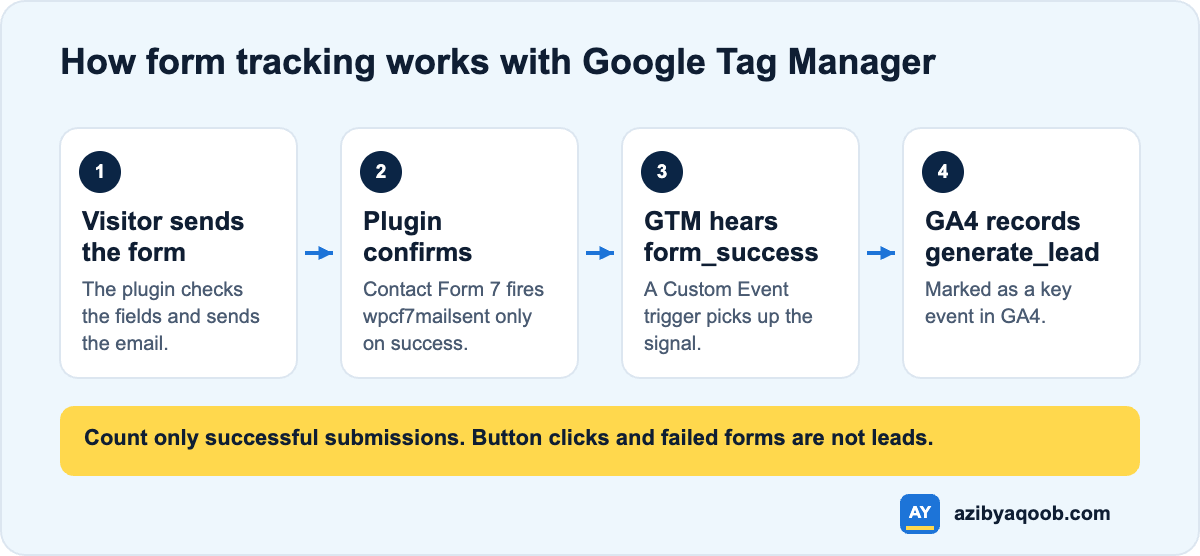
Most form plugins announce a successful submission in the page’s code. Google Tag Manager can listen for that signal and send one clean generate_lead event to GA4. This works without a thank-you page and only counts forms that were actually sent.
Step 1: Listen for the success signal
In GTM, create a Custom HTML tag that fires on all pages (or only pages with forms). For Contact Form 7, use:
<script>
document.addEventListener('wpcf7mailsent', function(e) {
  window.dataLayer = window.dataLayer || [];
  window.dataLayer.push({
    event: 'form_success',
    form_id: e.detail.contactFormId
  });
});
</script>
Other plugins send their own success signal. WPForms and Gravity Forms each have one too, and their documentation lists the exact name. The idea is the same: when the plugin confirms a successful submission, push a form_success event into the data layer.
Step 2: Create the trigger
Create a Custom Event trigger with the event name form_success.
Step 3: Send the event to GA4
Create a Google Analytics: GA4 Event tag with the event name generate_lead, fired by the form_success trigger. Add the form ID as a parameter if you have more than one form, so you can see which one brings enquiries.
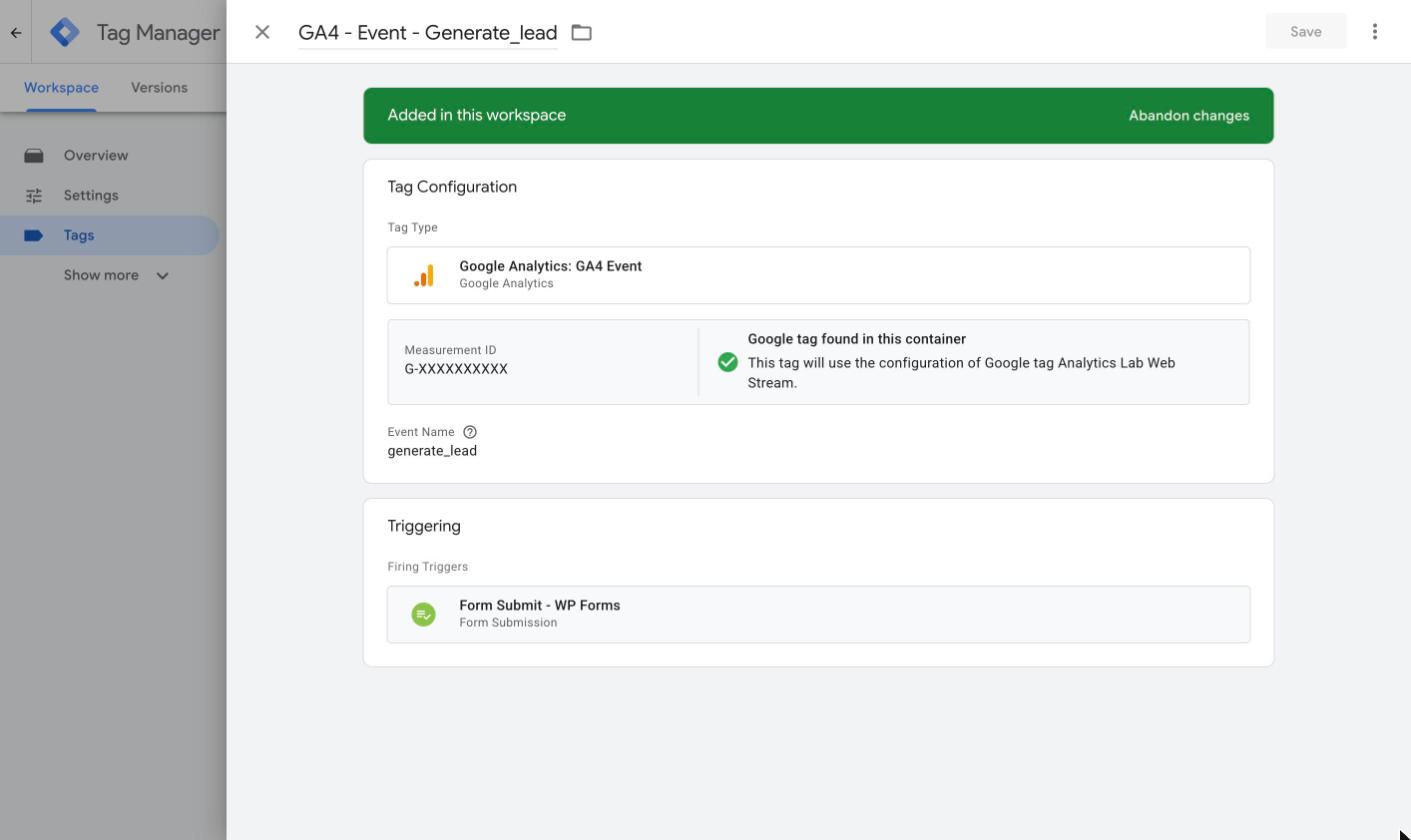
generate_lead. Make sure its trigger fires only on successful submissions.Step 4: Mark it as a key event
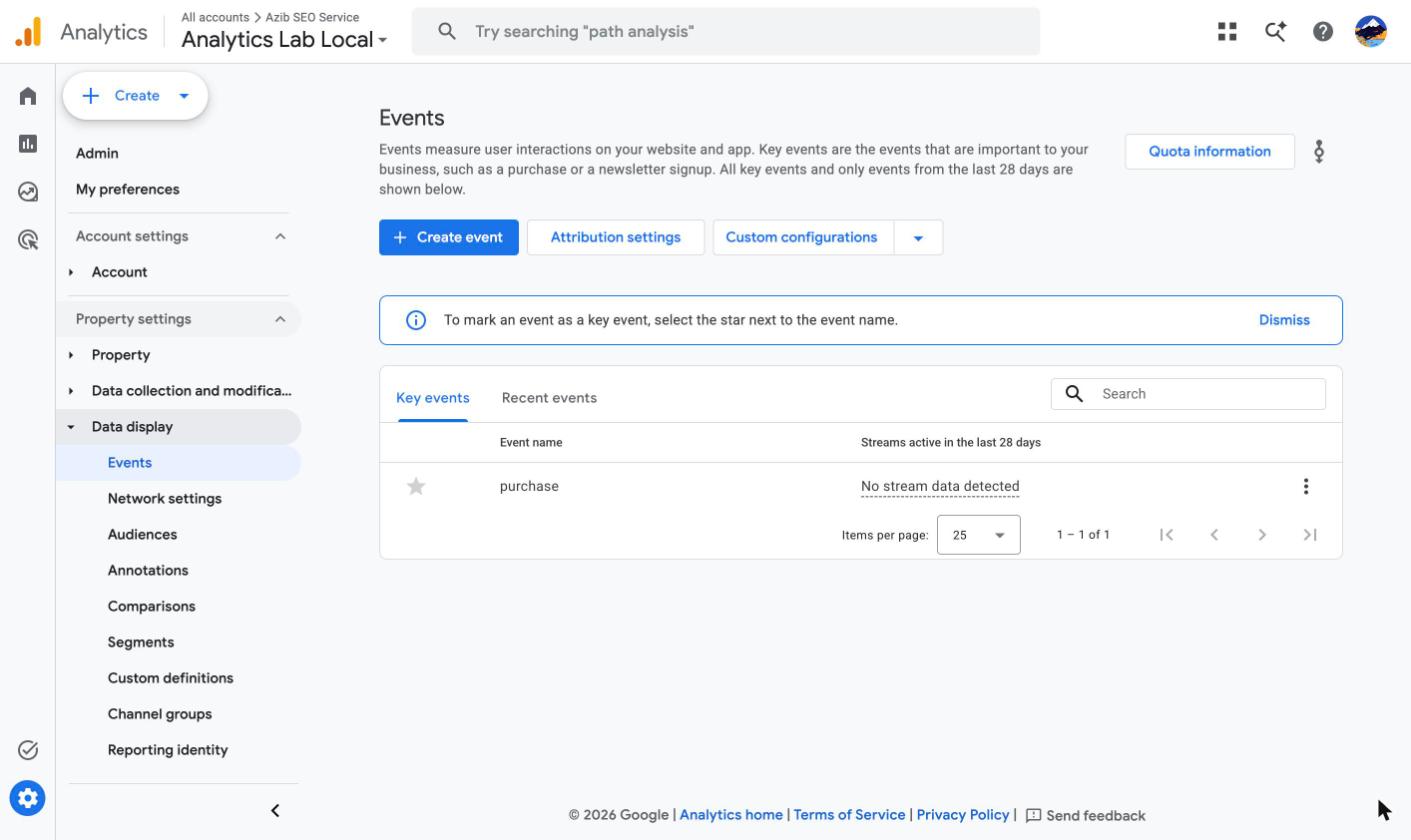
In GA4, go to Admin → Data display → Events and click the star next to generate_lead to mark it as a key event. If you run Google Ads, you can import it as a conversion from there.
Which method should you use?
- One simple contact form, no Tag Manager: Method 1 is fine.
- Several forms, Google Ads, or you need accurate numbers: Method 2.
- Both installed by different people over the years: pick one and remove the other, or every lead gets counted twice.
How to test it
- Open GTM Preview (or GA4 Admin → Data display → DebugView) and submit a real test enquiry.
- Check that exactly one
generate_leadevent appears, and none when the form shows an error. - After a day, compare the number of leads in GA4 with the emails you actually received. They won’t match perfectly, because some visitors decline cookies, but they should be close.
Where to see your leads in GA4
- Reports → Engagement → Events: total
generate_leadevents. - Reports → Acquisition → Traffic acquisition: switch the metric to key events to see which channels bring enquiries.
- Explore: add landing page as a dimension to see which pages start the visits that end in a lead.
Common mistakes
- Counting button clicks instead of successful submissions.
- Tracking the same form with a plugin and with GTM at the same time.
- Forgetting to mark the event as a key event, so it never shows up as a conversion.
- Not tagging links in emails and WhatsApp, so leads from them land in “Direct”.
Want this set up for you? I set up GA4 tracking that counts every real enquiry once, for WordPress, Shopify and WooCommerce. See GA4 tracking setup or ask for a free tracking check.